Run LLMs Locally with Ollama
01 Oct 2025 7 minutes to readAbstract
This guide explains how to run Ollama, a self-hosted platform for running large language models (LLMs) locally—without paying subscription fees to proprietary providers.
By the end of this guide, you will have a working local LLM environment running in Docker and will know how to interact with it using Ollama’s API.
What You Will Gain
- A working setup of Ollama inside Docker.
- Understanding how to pull and manage different models.
- Familiarity with Ollama’s APIs (
chat,generate,embeddings, etc.). - Knowledge of instructing LLMs to behave in specific ways for AI agent workflows.
Prerequisites
- Windows or Linux OS.
- Docker (Docker Desktop if on Windows).
- Windows users: WSL enabled (Windows 11 recommended).
- Nvidia GPU: Minimum 8 GB VRAM (RTX 3090 used in this guide). Smaller GPUs can work but require smaller models.
- NVMe M.2 SSD: Recommended for faster model loading. Regular SSDs work but model loading will take longer.
- Nvidia CUDA drivers: Ensure correct drivers are installed and GPU is accessible to Docker.
Is It Worth It?
Yes, if you already have an Nvidia GPU lying around.
If you are considering buying hardware only for this, it may not be worth it—GPU prices are skyrocketing. In that case, starting with API subscriptions from providers like OpenAI, Perplexity, or Gemini may be a better option.
Why Use Docker?
You could install Ollama as a native Windows application, which is simpler, but Docker offers several benefits:
- Full control over the environment.
- Keeps your OS clean.
- Easy to destroy and recreate containers as needed.
Architecture Overview
Before diving into the setup, here’s how all the components work together:
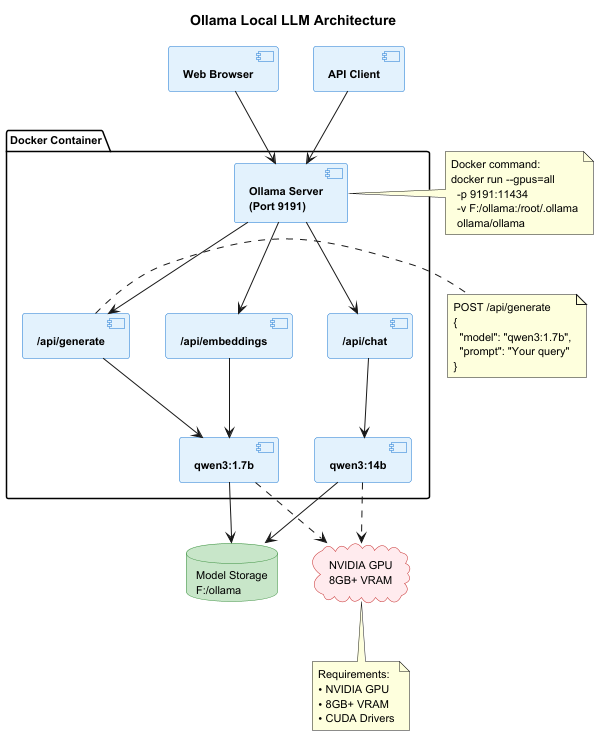
The diagram shows:
- Client Layer: Your browser or API clients interact with Ollama
- Docker Container: Houses the Ollama server, API endpoints, and loaded models
- Host System: Persistent storage and GPU resources that power the models
Step-by-Step Guide
1. Pull and Run Ollama in Docker
docker run --memory-swap -1 -d --gpus=all -v F:/ollama:/root/.ollama -p 9191:11434 --name ollama ollama/ollama
Note:
- Ollama is running on port 9191.
- Models will be stored outside the Docker container at F:/ollama.
- Keeping models in a dedicated folder reduces repeated downloads if the container is destroyed.
Verify Ollama is running by opening this link in your browser:
http://localhost:9191/
2. Choose and Pull Models
You now have Ollama running, ready to host open-source LLMs. Explore available models at the Ollama Model Directory
Choose a model based on your GPU VRAM:
- For testing, use a smaller model like qwen3:1.7b (1.4 GB).
- Larger GPUs can handle bigger models like qwen3:14b.
docker exec -it ollama ollama pull qwen3:1.7b

docker exec -it ollama ollama pull qwen3:14b
2. Useful Ollama Commands
| ollama cmd | docker cmd | details |
|---|---|---|
| ollama list | docker exec -it ollama ollama list | list all installed models |
| ollama ps | docker exec -it ollama ollama ps | Shows currently running models |
| ollama stop {model_name} | docker exec -it ollama ollama stop {model_name} | Stops a running model (e.g., qwen3:1.7b) |
| ollama help | docker exec -it ollama ollama help | Lists all available commands |
4. Using Ollama API (curl)
Common API endpoints:
- chat - query LLMs with preserved conversation history.
- generate - query LLMs without conversation history.
- tags - list available models.
- show - view details of a specific model.
- embeddings - convert natural language into vector embeddings.
Note: not all models support embeddings.
For more curl examples, see my GitHub repo.
For a complete reference, see the Ollama API Documentation
5. Example API Calls
Simple “Hello World” Query
curl --request POST \
  --url http://localhost:9191/api/generate \
  --header 'content-type: application/json' \
  --data '{
  "model": "qwen3:1.7b",
  "prompt": "what the diff between chat and generate api in ollama?"
}'
By default, streaming is enabled. This means responses are sent as they are generated (similar to how ChatGPT streams its output).
Disable Streaming
Add “stream”: false to the request body to return the full response at once:
curl --request POST \
  --url http://localhost:9191/api/generate \
  --header 'content-type: application/json' \
  --data '{
  "model": "qwen3:1.7b",
  "prompt": "what the diff between chat and generate api in ollama?",
  "stream": false
}'
Notice: The response may contain
elements. These represent internal reasoning. The actual answer begins after </think>.
6. Instructing LLM Behavior
You can guide the LLM to role-play or follow instructions.
Example: Fun Role Play
curl --request POST \
  --url http://localhost:9191/api/generate \
  --header 'content-type: application/json' \
  --data '{
  "model": "qwen3:1.7b",
  "prompt": "what the diff between chat and generate api in ollama?",
  "stream": false,
  "system": "you are a clown and always answer in a joke. your respond starts with hohoho..."
}'
Example: Structured JSON Output
This approach is especially useful when building AI agents, where predictable output formats are required:
curl --request POST \
  --url http://localhost:9191/api/generate \
  --header 'content-type: application/json' \
  --data '{
  "model": "qwen3:1.7b",
  "prompt": "what the diff between chat and generate api in ollama?",
  "stream": false,
  "system": "you are a clown and always answer in a joke. your respond starts with hohoho... you respond in json of structure thought, response, why_its_a_better_reponse, any_other_response_you_considered"
}'
Conclusion
You now have:
- A Dockerized Ollama environment running locally.
- Pulled and managed LLM models.
- Examples of interacting with Ollama APIs using curl.
- Knowledge of instructing LLMs for role-play or structured responses.
With this setup, you can explore different models, test APIs, and extend your work towards AI agent frameworks and real-world applications.